
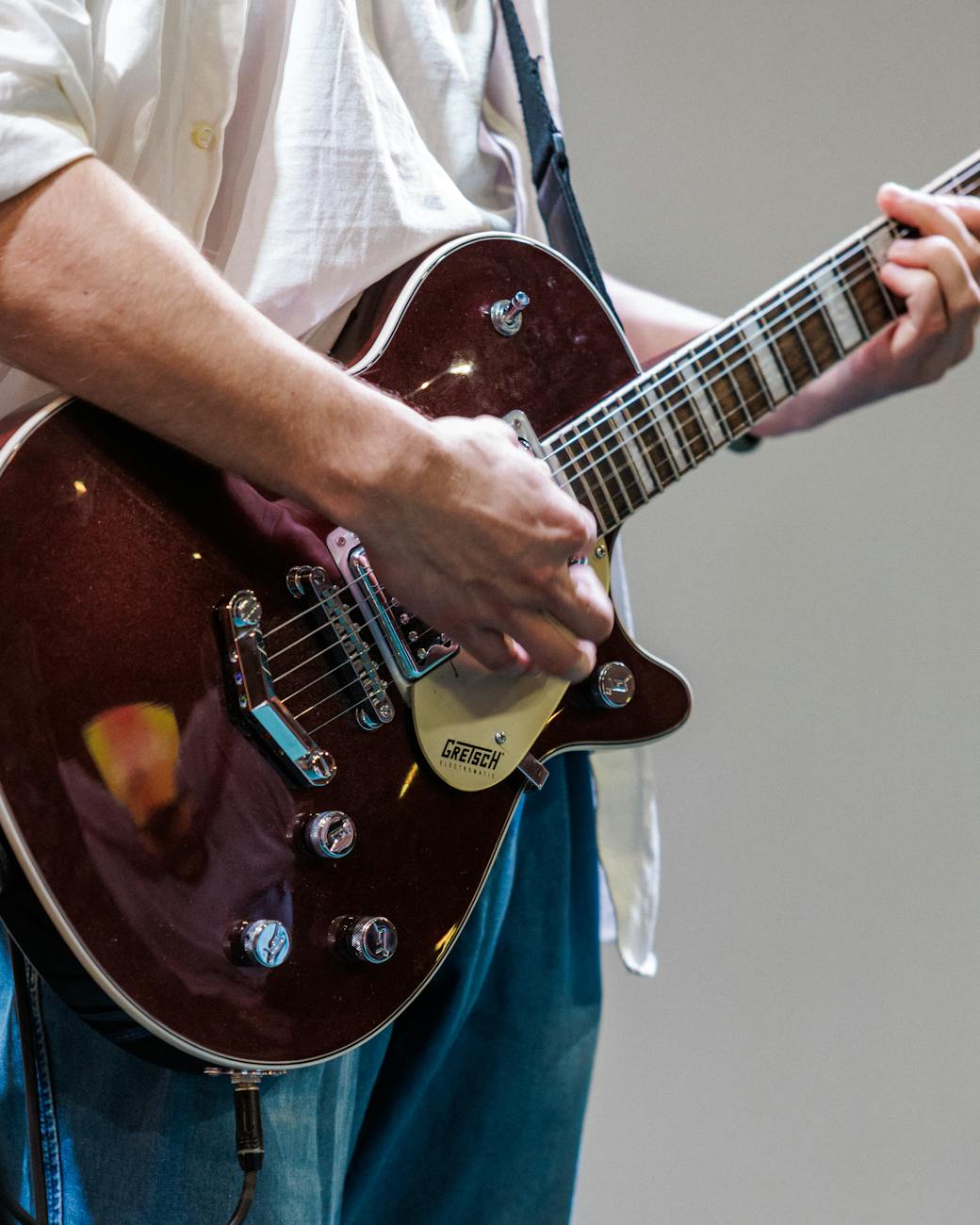
Guitar teachers need more than a basic chord library. They need a flexible way to create clear, accurate, and professional chord charts that match the exact material being taught.
A standard chord book may include common open chords, but it may not show the specific voicing, fingering, inversion, tuning, or progression used in a lesson. Teachers often need to create custom materials for individual students, group classes, online courses, worksheets, method books, and video lessons.
The best guitar chord chart maker for teachers should make that process fast and simple.
It should allow educators to create multiple diagrams, add finger numbers, mark open and muted strings, draw full or partial barres, hear the chord, automatically identify its name, and export the finished graphics in formats suitable for both digital and print use.
FretGlyph is designed to support that complete workflow. Teachers can create up to 16 chord diagrams in one project, customize their appearance, play the voicings, and export them as PNG, JPG, or SVG files.
This guide explains what teachers should look for in a guitar chord chart maker and how to create better chord charts for lessons, assignments, and educational products.
Why Guitar Teachers Need Custom Chord Charts
Every student learns differently.
A beginner may need large diagrams with finger numbers and only three chords on a page. An intermediate player may need a complete song progression. A jazz student may need several inversions of the same chord. A left-handed student may need mirrored diagrams. A fingerstyle player may use alternate tunings or partial barres that do not appear in standard chord books.
Custom charts allow the teacher to control:
- The exact chord voicing
- The recommended fingering
- The diagram size
- The number of chords
- The order of the chords
- The tuning
- The capo position
- The use of root-note highlighting
- The visual style
- The level of detail
A dedicated tool such as the FretGlyph guitar chord chart maker makes it easier to create materials for the student in front of you rather than relying on a one-size-fits-all reference.
What Is a Guitar Chord Chart Maker?
A guitar chord chart maker is an online tool that lets you create visual fretboard diagrams.
Each diagram usually includes:
- Six guitar strings
- Several frets
- Finger-position dots
- Open-string symbols
- Muted-string symbols
- Finger numbers
- Barre indicators
- A chord name
- A starting-fret number
A chord chart may contain one diagram or a collection of related diagrams.
Teachers can use chord charts for:
- Open-chord lessons
- Chord-change exercises
- Song instruction
- Barre-chord practice
- CAGED-system lessons
- Jazz harmony
- Alternate tunings
- Chord inversions
- Fretboard theory
- Composition and songwriting
The best tools should support both basic and advanced material.
Why Generic Chord Libraries Are Not Always Enough
Preset chord libraries are useful, but they can become limiting.
A library may show one common version of G major, but the teacher may want:
- A four-string G voicing
- A G chord without the high E string
- A G/B inversion
- A Gadd9 shape
- A movable G shape
- A left-handed version
- A G chord in an alternate tuning
The teacher may also want to choose a different fingering to make the transition into the next chord easier.
A custom editor provides more flexibility than a fixed library.
With FretGlyph, teachers can begin with a preset or build the exact chord shape from a blank diagram.
Feature 1: Easy Note Placement
Creating a chord should not require graphic-design experience.
A strong chord chart maker should let the teacher click or tap directly on the fretboard to add notes.
The editor should make it easy to:
- Add a finger dot
- Remove a finger dot
- Change the fret
- Change the string
- Add a finger number
- Highlight a root note
- Move the entire shape higher on the neck
Fast editing matters when preparing several diagrams before a lesson.
A complicated interface can turn a ten-minute task into an hour-long design project.
Feature 2: Multiple Chords in One Workspace
Teachers rarely need only one chord.
A lesson may include:
- A four-chord song
- Seven chords from one key
- Eight movable shapes
- Several inversions
- A group of beginner chords
- A twelve-bar blues progression
Creating one diagram at a time can be inefficient.
You may have to export the image, clear the editor, build the next chord, and repeat the process.
FretGlyph allows teachers to create up to 16 diagrams in one project.
This makes it easier to:
- Compare related shapes
- Keep the design consistent
- Duplicate similar chords
- Reorder the diagrams
- Create progressions
- Export an entire lesson set
A multi-diagram workspace is one of the most valuable features for educators.
Feature 3: Finger Numbers
Finger numbers help students understand how the chord should be played.
The standard fretting-hand system is:
- 1: index finger
- 2: middle finger
- 3: ring finger
- 4: little finger
Finger numbers are especially useful for:
- Beginners
- Difficult chord shapes
- Barre chords
- Chord transitions
- Alternate fingerings
- Technique exercises
However, teachers may not want finger numbers on every chart.
Advanced students may benefit from choosing their own fingering. Theory charts may focus on note names or intervals instead.
The best chord chart maker should allow finger labels to be added or removed as needed.
Feature 4: Open- and Muted-String Symbols
Every string should have a clear status.
An O indicates an open string. An X indicates a muted or omitted string.
These symbols prevent students from guessing which strings should sound.
For example, a D major chord typically begins on the fourth string. The fifth and sixth strings should be avoided or muted.
If the chart does not show this clearly, a beginner may strum all six strings and produce an incorrect or muddy sound.
A good editor should allow the teacher to cycle each string among:
- Fretted
- Open
- Muted
- Unused
Feature 5: Full and Partial Barres
Teachers need to be able to diagram more than open chords.
Barre support is essential for:
- Movable major chords
- Movable minor chords
- Seventh chords
- CAGED shapes
- Jazz voicings
- Funk chords
- Fingerstyle shapes
- Chord-melody arrangements
The tool should support both full and partial barres.
A partial barre may cover only two or three strings and may use a finger other than the index finger.
The diagram should show the exact string range and finger assignment.
The FretGlyph chord diagram creator is designed to support full and partial barres for more accurate teaching materials.
Feature 6: Automatic Chord Naming
Automatic chord recognition can save teachers time and provide a useful accuracy check.
As the teacher places notes on the fretboard, the software can calculate the pitches and suggest a chord name.
This is especially helpful for:
- Jazz voicings
- Slash chords
- Chord inversions
- Added-note chords
- Open-string chords
- Extended harmony
- Alternate tunings
If the generated name is unexpected, the teacher can review the shape for errors.
Perhaps:
- One note was placed on the wrong fret.
- An open string was left active.
- The bass note creates an inversion.
- The selected tuning is incorrect.
- The chord has more than one valid interpretation.
Automatic naming should support the teacher rather than replace musical judgment.
Feature 7: Manual Chord-Name Overrides
The same set of notes can sometimes be named in more than one way.
For example, the notes C, E, G, and A might be labeled:
- C6
- Am7/C
- C6(no5), depending on the exact voicing
The best name depends on the musical context.
A teacher may also want to use a simplified label for a beginner or match the notation used in a song.
FretGlyph allows users to override the automatic chord name.
Once the teacher enters a custom label, it should remain in place until automatic naming is intentionally restored.
Feature 8: Chord Playback
Hearing the chord can help both teachers and students.
Playback allows the teacher to confirm that the diagram produces the intended sound before sharing it.
It can reveal:
- An incorrect note
- An unwanted open string
- A wrong bass note
- A muddy voicing
- An unexpected dissonance
- A mismatch between the shape and the chord name
During the lesson, the student can compare the sound of the digital chord with the sound of the guitar.
Useful playback modes include:
- Downward strum
- Upward strum
- Simultaneous notes
- Low-to-high arpeggio
- High-to-low arpeggio
The ability to hear the chord makes FretGlyph useful as both a diagram tool and a teaching aid.
Feature 9: Alternate Tuning Support
Many students eventually explore tunings beyond standard E A D G B E.
Teachers may need to create materials for:
- Drop D
- DADGAD
- Open D
- Open G
- Half-step down
- Full-step down
- Custom tunings
Changing the tuning affects every note on the fretboard.
It also affects:
- Automatic chord naming
- Chord playback
- Bass-note identification
- Inversion analysis
A chord chart maker should calculate the sound from the selected tuning rather than assuming standard tuning.
Feature 10: Capo Support
A capo changes the sounding pitch while allowing the player to use familiar chord shapes.
For example:
- G shape with capo 2 sounds as A.
- C shape with capo 3 sounds as Eb.
- D shape with capo 2 sounds as E.
A capo-aware chart can display:
- The shape name
- The capo fret
- The sounding chord
This is useful for singer-guitarists, song lessons, transposition exercises, and ensemble arrangements.
The playback should also reflect the capo position.
Feature 11: Left-Handed Diagrams
Left-handed students may find standard diagrams difficult to interpret.
A proper left-handed option should mirror the fretboard orientation without reversing the text.
The chord name, finger numbers, and fret labels should remain readable.
This allows teachers to create customized materials for both right- and left-handed players.
Feature 12: Customizable Diagram Styles
Different students and teaching environments require different visual designs.
A beginner may benefit from:
- Large finger dots
- Large chord names
- High contrast
- Fewer diagrams per page
A printed method book may need:
- Thin black lines
- Consistent sizing
- Transparent backgrounds
- Minimal color
An online course may use branded colors.
Useful customization options include:
- Background color
- Fretboard color
- Dot color
- Root-note color
- Text color
- Font size
- Dot size
- Line thickness
- Diagram spacing
- Borders
With FretGlyph, teachers can create diagrams that fit different lesson formats and visual needs.
Feature 13: PNG Export
PNG is useful for digital teaching materials.
Teachers can use PNG diagrams in:
- Email lessons
- Online courses
- Google Docs
- Microsoft Word
- Presentations
- Student portals
- Social media
- Digital worksheets
PNG also supports transparent backgrounds.
This allows the diagram to be placed on a colored page or branded design without a visible white box.
Feature 14: SVG Export
SVG is especially valuable for printed educational materials.
Because SVG is a vector format, the diagram can be resized without becoming blurry.
Teachers and authors can use SVG files in:
- Method books
- Printable worksheets
- Posters
- Classroom displays
- Professional PDFs
- Design applications
A scalable vector export helps maintain sharp fret lines, text, and finger numbers at any size.
Feature 15: Copy-to-Clipboard Support
A copy button can save time during lesson preparation.
Instead of downloading the file, locating it, and inserting it manually, the teacher can copy the diagram and paste it directly into:
- Google Docs
- Microsoft Word
- PowerPoint
- Keynote
- Design software
- Course platforms
This is particularly useful when creating a quick worksheet or adding one custom chord to lesson notes.
Feature 16: Project Saving
Teachers often reuse and update lesson materials.
A project-saving system should preserve:
- Chord positions
- Finger numbers
- Open and muted strings
- Barres
- Chord names
- Diagram order
- Visual settings
- Tunings
- Capo settings
Local browser saving can protect the project after a refresh.
A JSON export can allow the teacher to download the editable project and reopen it later.
Saving the project data is more useful than preserving only the final image because the diagrams remain editable.
How to Make a Beginner Chord Chart
A beginner chart should be simple and focused.
Follow these steps:
- Choose three to five chords.
- Use large diagrams.
- Add finger numbers.
- Clearly mark open strings.
- Clearly mark muted strings.
- Avoid unnecessary colors.
- Arrange chords in practice order.
- Add one short instruction.
- Play each chord before exporting.
- Use PNG for easy sharing or printing.
A first chart might include:
- G
- C
- D
- Em
This is enough to practice many songs without overwhelming the student.
How to Make a Song Chord Chart
A song chord chart should show the exact shapes used in the arrangement.
To create one:
- List every chord in the song.
- Choose the best voicing for each chord.
- Add the diagrams in order of appearance.
- Include capo information.
- Add alternate fingerings when necessary.
- Test the transitions.
- Play each diagram.
- Export the set.
Using FretGlyph, the teacher can place up to 16 song chords in one project and reorder them as needed.
How to Make a Barre Chord Lesson Chart
A movable-shape lesson might include:
- F major
- G major
- A major
- F minor
- G minor
- A minor
Use the same shape at different frets so the student can see the pattern.
Highlight the root notes to show how the chord name changes.
Add a short note explaining that the root is located on the low E or A string.
How to Make a CAGED-System Chart
A CAGED chart can show five shapes for one chord across the neck.
For example, create five C major diagrams based on:
- C shape
- A shape
- G shape
- E shape
- D shape
Use starting-fret labels and root-note highlights.
Arrange the diagrams from the lowest neck position to the highest.
This creates a visual map of the chord across the fretboard.
How to Make a Jazz Chord Chart
Jazz students may need compact voicings rather than full six-string chords.
A jazz chart may include:
- Major sevenths
- Minor sevenths
- Dominant sevenths
- Half-diminished chords
- Diminished sevenths
- Altered dominants
- Ninth and thirteenth chords
Show the bass note clearly and use chord names that match the progression.
Finger numbers may be helpful for difficult shapes, but advanced charts can remain cleaner without them.
Playback is particularly valuable for checking extended and altered harmony.
How to Make a Chord Progression Worksheet
A progression worksheet combines chord diagrams with a practice instruction.
For example:
Key of G
- G
- D
- Em
- C
Practice instruction:
“Strum each chord four times and repeat the progression for three minutes.”
The chart may also include Roman numerals:
- G: I
- D: V
- Em: vi
- C: IV
This connects physical shapes with harmonic function.
How to Use Chord Charts During a Lesson
A chart can support several teaching activities.
Chord recognition
Cover the names and ask the student to identify the shapes.
Fingering practice
Have the student build each chord slowly from the diagram.
Sound comparison
Use playback and compare the digital sound with the guitar.
Progression practice
Move through the diagrams in order using a metronome.
Theory discussion
Identify the root, third, fifth, seventh, or extensions.
Transposition
Move a barre shape to another fret and rename the chord.
Student-created charts
Ask the student to build a diagram as homework.
Creating a chord chart can reinforce fretboard knowledge and music theory.
Mistakes Teachers Should Avoid
Including too many chords
A large chart may overwhelm a beginner.
Making diagrams too small
The student must be able to see every dot and symbol clearly.
Omitting muted strings
Students may strum notes that should be avoided.
Using difficult voicings too early
Choose shapes that match the student’s current ability.
Relying only on color
Charts should remain understandable in black and white.
Forgetting starting-fret labels
Higher-position shapes need clear fret numbers.
Using inconsistent fingerings
Related diagrams should follow a logical fingering system.
Skipping playback
Always hear the chord before distributing the chart.
Why FretGlyph Works Well for Guitar Teachers
FretGlyph is designed to combine the features teachers need in one workspace.
Teachers can:
- Create custom chord shapes
- Work with up to 16 diagrams
- Add finger numbers
- Mark open and muted strings
- Create full and partial barres
- Adjust starting frets
- Use alternate tunings
- Add capo settings
- Automatically identify chords
- Override chord names
- Play the voicings
- Customize the appearance
- Export PNG, JPG, or SVG files
- Copy diagrams to the clipboard
This makes it useful for private lessons, classroom teaching, online courses, guitar books, and downloadable educational materials.
Start Creating Guitar Chord Charts for Your Students
The best guitar chord chart maker for teachers should make it easy to create materials that match the exact lesson.
It should support beginner open chords, advanced voicings, barres, alternate tunings, capo settings, left-handed layouts, playback, automatic naming, and professional exports.
Most importantly, it should save time.
Teachers should be able to create a complete set of diagrams without drawing fretboards manually or switching between several applications.
FretGlyph provides a flexible way to build, hear, organize, and export custom guitar chord charts for students.
Visit FretGlyph to create professional guitar chord charts for your lessons.
Leave a Reply